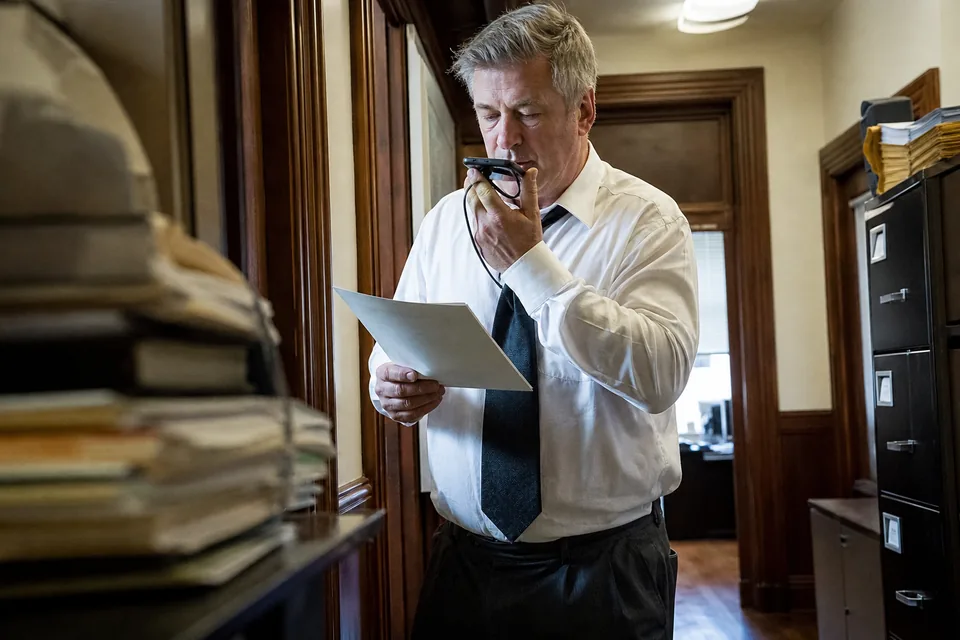
Last updated October 19, 2026. Email is where many professionals spend the most typing time, and much of it is spent on messages that would take thirty seconds to say out loud. You can dictate in Gmail on every common device, with tools that are already installed or with a dedicated app. The real difference between them is not whether they catch your words, it is whether the result looks like an email you would send without fixing it first.
Does Gmail have dictation built in
In the browser, Gmail's compose window does not offer its own microphone button for dictation. What you use instead is the dictation that comes with your operating system or your phone keyboard, which types into whatever text field has focus, including a Gmail draft. On phones, the keyboard's microphone key works inside the Gmail app just like in any other app.
So the question is less "how do I dictate in Gmail" and more "which dictation tool on my device gives me the cleanest email". The sections below go through the built-in options, then cover what changes with dedicated dictation software.
Dictating into Gmail on a Mac
macOS includes Dictation, which you can turn on in the keyboard settings and start with a keyboard shortcut. Click into the Gmail message body, start Dictation, speak, and the text appears at the cursor. Recent versions process many languages on the device. It handles plain sentences well and inserts punctuation in many cases, and you can also say punctuation such as "comma" or "period" out loud.
Dictating into Gmail on Windows
Windows offers voice typing, which opens with the Windows key and H. Place the cursor in the Gmail draft, start voice typing, and speak. It types into the browser like into any other app. It supports a set of voice commands for punctuation and basic corrections, which you can find in the Windows help for voice typing.
What the built-in tools leave to you
Both system tools write what you say, roughly in the shape you said it. They do not know that you are writing an email. That means a few things are left for you to fix every time.
- Greetings and sign-offs come out as running text instead of separate lines.
- Lists you speak naturally ("first the contract, then the invoice, and also the schedule") stay as one long sentence.
- Filler words and restarts remain unless you speak very carefully.
- Names of clients, colleagues and products are spelled however the system guesses.
- The tone is your spoken tone, which is usually more casual than the email you would have typed.
Dictating in the Gmail app on iPhone and Android
On iPhone, open a new message in the Gmail app, tap into the body, and tap the microphone key on the keyboard. On Android, the default keyboard on most phones has a microphone key that works the same way. Speak, then tap the key again or pause to stop. Phone dictation is quick for short replies, and it works well when you are walking or between appointments.
The same limits apply as on the desktop. Formatting is minimal, long messages turn into one paragraph, and correcting a word on a small screen takes longer than saying it again. For a three line reply that is fine. For a client update with a list of next steps, you usually end up editing more than you saved.
Step by step, dictate in Gmail with Stenograph
Here is the routine from an empty draft to a sent message.
- Open Gmail in your browser and click Compose, or reply to the message you are answering.
- Click into the message body so the cursor sits where the text should go.
- Press your Stenograph hotkey, or click the extension, and speak the whole email in one go.
- Pause. Stenograph processes the audio and inserts the formatted email at the cursor.
- If something needs to change, say it, for example "make that a list" or "delete the last sentence".
- Read it once, add the subject line, and send.
Most people find the first few emails feel strange to say aloud and then quickly become the normal way to write. Saying a reply out loud is usually much quicker than typing it, and with formatting handled for you, the time saved is not eaten up by cleanup.
How to speak an email so it comes out well
A little technique makes dictated emails better with any tool.
- Say who it is for first. "Email to Laura about the revised timeline" gives the formatter context.
- Speak in complete thoughts. Pause between points instead of in the middle of a sentence.
- Say the list as a list. "Three things. First... Second... Third..." is easy to structure.
- Do not worry about filler words with a formatting tool, but do say the important numbers clearly.
- Read before sending. Dictation, like typing, can produce a wrong word, and a wrong date in an email causes real problems.
Where dictating email saves the most time
Not every email benefits equally. The biggest gains come from messages that are long to type but easy to say.
Client updates after a call
After a call you already know what you want to say: what was discussed, what you agreed, what happens next. Typing that takes ten minutes. Saying it takes two, and with formatting the next steps arrive as a list your client can scan. Lawyers, consultants and account managers often find this is where dictation pays for itself first.
Replies to long threads
A thread with six messages and three open questions is tiring to answer by keyboard. Read the thread, press the hotkey, answer each question in order, and say "make that a list" at the end. The reply is structured the way the thread needed, and you did not lose your train of thought switching between reading and typing.
Short replies on the move
Between meetings or on a walk, the phone keyboard is the obvious tool. A dictation keyboard that formats text means a quick "Thanks, Tuesday works, I will bring the signed copy" arrives with proper punctuation instead of a run of lowercase words. The Stenograph keyboard for iPhone and Android works in the Gmail app the same way it does in any other app.
Emails in a second language
If you write to clients in more than one language, switching keyboard languages and spell checkers slows you down. Stenograph detects the language you speak, and you can mix languages in one sentence, for example a German client name inside an English email, without changing settings.
Troubleshooting dictation in Gmail
When dictation into a Gmail draft does not behave, the cause is usually one of a handful of things.
- Nothing appears. Check that the cursor is actually in the message body and not in the subject or recipient field, and that the browser has permission to use the microphone.
- The wrong microphone is used. On a laptop with a headset or an external webcam, choose the input device in your system sound settings.
- Text appears in the wrong place. Dictation tools insert at the cursor, so click where the text should go before you start speaking.
- Names keep coming out wrong. Add them to your custom vocabulary once instead of correcting them in every email.
- The email sounds too casual. Ask for "more formal" after dictating, or set a more formal writing style for email.
Most of these are one-time fixes. After the first week, dictating an email becomes as routine as typing one used to be, only shorter.
What happens to your voice and your emails
Email often contains confidential details, so it is worth knowing where your words go. With Stenograph the audio is processed and then deleted, it is not stored. Text history is optional, you can turn it off and delete it. Data is encrypted in transit and at rest, and your content is never used to train AI models. The dictation privacy page explains the details.